
Live Activities 101: Adding a Live Timer Widget
FocusPasta finally supports Live Activities!

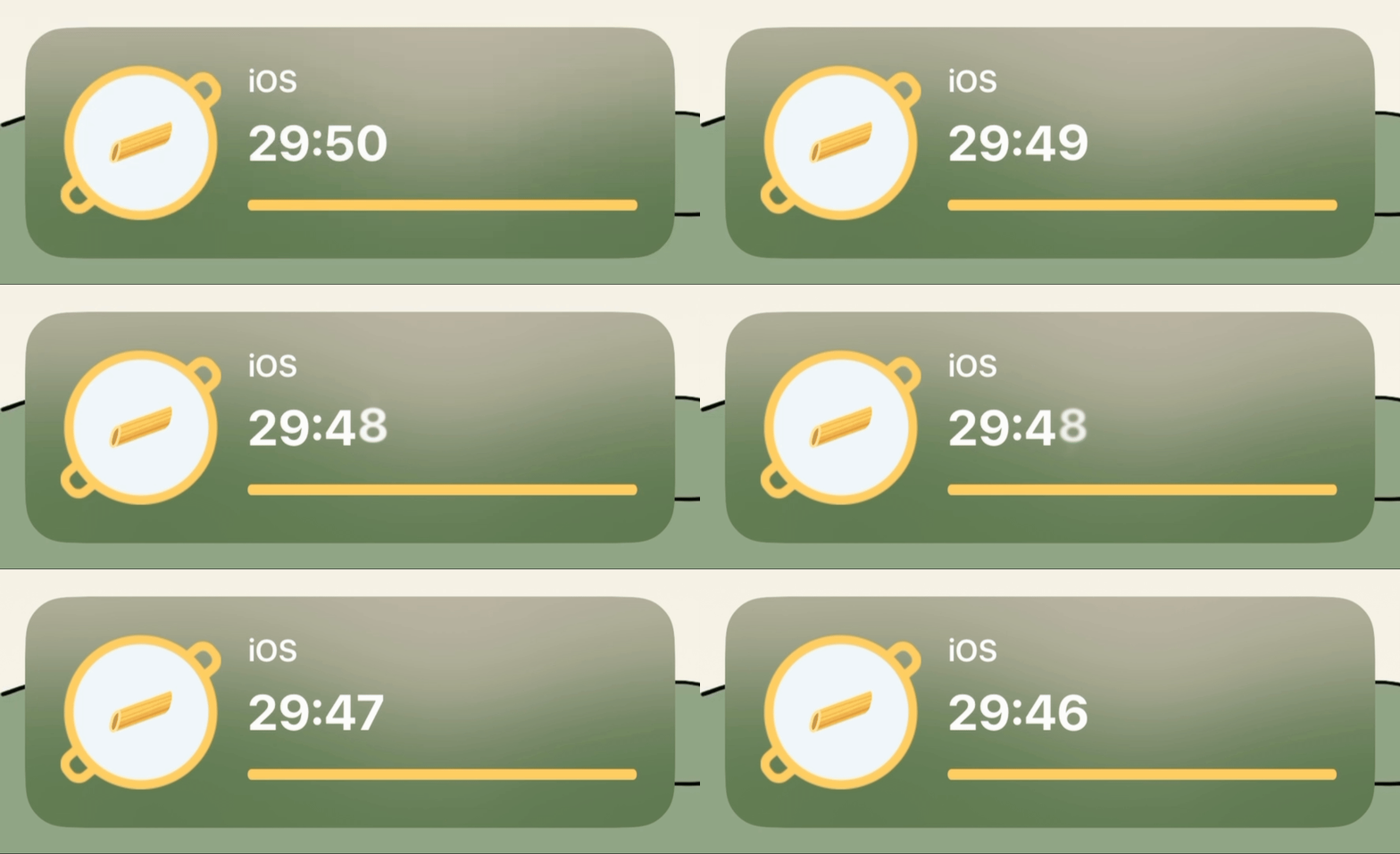
I’m excited to announce that FocusPasta now supports Live Activities! 🎉 This highly anticipated feature was the top request for FocusPasta, thanks to our sole user (me), who is incredibly demanding.
Why This Update is a Big Deal
Before this update, to check the remaining time, I had to do the following:
Tap my phone screen.
Angle my face perfectly in front of the camera for Face ID.
Swipe up with my finger.
Hunt down FocusPasta if it wasn’t already on the screen.
Accidentally tap on Instagram and do a mandatory 30-minute doom scroll before remembering what I was doing in the first place.
It was quite an ordeal (yes, first-world problems).
I begged the developer (that’s me!) to PLEASE add this feature already. A period of intense negotiation ensued, during which I bribed myself with a delicious iced coffee and a cute brunch, and the developer (still me) finally caved and made it happen.
After all, my wish is my command.
Introduction to Live Activities
For the User
Live Activities allows apps to provide real-time information to your phone at a glance without opening your app or even unlocking your screen. These widgets appear in 2 locations on your iPhone: the Dynamic Island and the Lock Screen.
With Live Activities, you can easily track your Grab/Uber ride pickup or stay updated with live scores for a football match. For FocusPasta, this feature allows you to view the remaining time for your focus session.
For Developers
From a technical standpoint, Live Activities are lightweight widgets designed to deliver real-time updates while prioritizing battery efficiency. They come with (extremely) limited functionality, which means they don’t support complex interactions or frequent updates.
When I first began designing this widget, I envisioned the pasta growing and rolling around the pot in reaction to the phone’s movements, just like in the main app — but reality hit me hard.
Putting aside those lofty dreams, let’s shift our focus to what Live Activities can realistically achieve. In the following sections, I’ll guide you through the setup process for Live Activities.
Setting Up Live Activities
Here’s a step-by-step breakdown of how I set up Live Activities:
Enable Live Activities
Go to Info in the main target of the project.
Add “Supports Live Activities” and set the value to “YES”.
2. Add a New Target for Live Activities:
Go to File > New > Target > Widget Extension
Make sure that “Include Live Activity” is checked
Set the Product Name to “FocusSession”
Click Finish
This creates a new target named “FocusSession”, which automatically creates a new directory with the following files:
FocusSession
├── FocusSessionBundle.swift
├── FocusSession.swift
└── FocusSessionLiveActivity.swift
Overview of these files:
FocusSessionBundle.swift:
This file contains FocusSessionBundle, a WidgetBundle that groups all the widgets in your app, including the Live Activity.
import WidgetKit
import SwiftUI

@main
struct FocusSessionBundle: WidgetBundle {
    var body: some Widget {
        FocusSession()
        FocusSessionLiveActivity()
    }
}
FocusSession.swift
This file corresponds to the FocusSession widget, which we are not implementing in this update. (I commented out everything in this file, as well as FocusSession() in FocusSessionBundle.swift)
FocusSessionLiveActivity.swift
This file corresponds to the FocusSessionLiveActivity widget, which contains the main implementation logic for the Live Activity.
It contains two structs:
FocusSessionAttributes: Defines the Live Activity’s data structureFocusSessionLiveActivity: Implements the Live Activity UI
import ActivityKit
import WidgetKit
import SwiftUI

struct FocusSessionAttributes: ActivityAttributes {
    public struct ContentState: Codable, Hashable {
        // ... dynamic stateful properties
    }
    // ... fixed non-changing properties
}

struct FocusSessionLiveActivity: Widget {
    var body: some WidgetConfiguration {
        ActivityConfiguration(for: FocusSessionAttributes.self) { context in
            // ... lock screen UI
        } dynamicIsland: { context in
            // ... dynamic island UI
        }
    }
}
Configuring the Live Activity
1. FocusSessionAttributes
In this structure, we define the attributes and content states for our Live Activity, which represent the information we want to display.
struct FocusSessionAttributes: ActivityAttributes {
 public struct ContentState: Codable, Hashable {
  var categoryName: String
  var pastaColor: PastaColors
  var pastaType: PastaTypes
 }

 var startDate: Date
 var endDate: Date
 var countsDown: Bool //true for timer mode, false for stopwatch mode
}Attribute: Defines the static, non-changing properties of the Live Activity.
startDateandendDate: In FocusPasta, the duration of your focus session is fixed, meaning these dates do not change once the activity starts.countsDown: This indicates whether the activity is in timer mode (counting down) or stopwatch mode (counting up). Since the mode does not change during a session, it's also a constant.
ContentState: Defines the dynamic part of the Live Activity that may change, reflecting real-time updates.
In FocusPasta, users are allowed to change the category mid-session. When this happens, we want to update the Live Activity to reflect the updated category name, pasta type, and colour.
By splitting attributes and content state this way, Apple ensures that only the mutable, real-time elements must be tracked and updated. This approach helps to maintain the efficiency and lightweight nature of Live Activities.
2. FocusSessionLiveActivity
In this struct, we define the UI for the Live Activity.
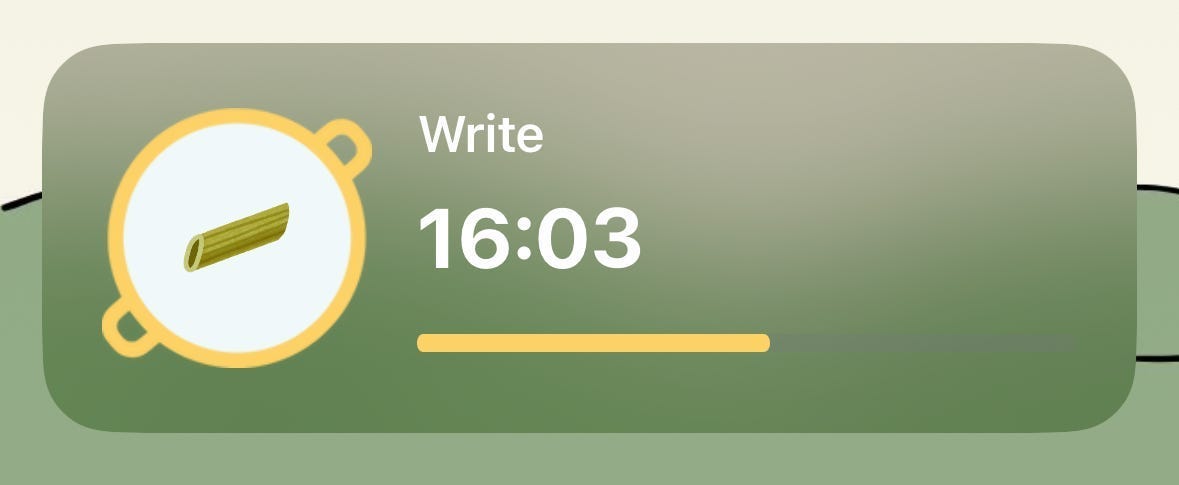
Here’s how the code achieves the above look:
struct FocusSessionLiveActivity: Widget {
 var body: some WidgetConfiguration {
  ActivityConfiguration(for: FocusSessionAttributes.self) { context in
   VStack {
    HStack(spacing: 15) {
     ZStack {
      Image("pot")
       .resizable()
       .aspectRatio(contentMode: .fit)
       .frame(width: 90, height: 90)
       .foregroundColor(.pastaYellow)

      Image("\(context.state.pastaType)-\(context.state.pastaColor)")
       .resizable()
       .aspectRatio(contentMode: .fit)
       .frame(width: 40, height: 40)
       .rotationEffect(.degrees(-20))
     }
     .frame(width: 90, height: 90)

     VStack(alignment: .leading, spacing: 8) {
      Text(context.state.categoryName)
       .font(.body)
       .foregroundStyle(.white)
       .bold()

      Text(timerInterval: context.attributes.startDate...context.attributes.endDate, countsDown: context.attributes.countsDown, showsHours: false)
       .font(.title)
       .foregroundStyle(.white)
       .bold()

      ProgressView(timerInterval: context.attributes.startDate...context.attributes.endDate, countsDown: context.attributes.countsDown, label: { Text("") }, currentValueLabel: { Text("") })
       .progressViewStyle(LinearProgressViewStyle())
       .tint(.pastaYellow)
       .frame(height: 20)
       .scaleEffect(x: 1, y: 1.5, anchor: .center)
     }
    }

   }
   .activityBackgroundTint(.black.opacity(0.25))
   .padding(.vertical, 20)
   .padding(.horizontal, 20)
  } dynamicIsland: { context in
   // ... dynamic island UI (out of scope)
  }
 }
}
TimerInterval
In the widget configuration above, notice that I passed in startDate and endDate as fixed attributes instead of making timeElapsed a content state variable. This is due to Apple’s restriction on background app activity, which prevents timers from running in the background. Using timeElapsed As a content state variable, the timer in the widget will stop updating after a few seconds.
To address this limitation, Apple introduced the timerInterval initializer for Text and ProgressView. This initializer accepts a specified time range to define the interval for the timer and automatically updates the timer text and progress bar. It displays a countdown when countsDown is true and a stopwatch-style timer when countsDown is false.
It enables the widget to manage its timer instance without relying on updates from the timer in the main app.
Previously, I’ve discussed my battles with running a timer in the background in this post.
3. FocusSessionLiveActivityManager
I created a FocusSessionLiveActivityManager class to manage the life cycle of a Live Activity, including starting a new activity, updating its content state, and ending the activity when the session is done.
Using a separate class to manage these tasks offers some advantages:
Separation of Concerns: This principle ensures that different aspects of an application are handled by distinct components or classes, each with its specific responsibility. This simplifies maintenance and makes the code easier to understand and test.
Encapsulation: This ensures that all data and methods related to Live Activities are bundled within a single class, improving code organization.
Focused Responsibility: Each method in the class handles a specific task, such as creating, updating, or ending an activity, leading to better readability and easier debugging.
Here’s how the class is implemented:
import ActivityKit
import Combine
import Foundation
import SwiftUI

class FocusSessionLiveActivityManager {
 private var liveActivityID: Activity<FocusSessionAttributes>.ID?

 @available(iOSApplicationExtension 16.2, *)
 func startFocusSessionActivity(startDate: Date, endDate: Date, countsDown: Bool, categoryName: String, pastaColor: PastaColors, pastaType: PastaTypes) {
  let attributes = FocusSessionAttributes(
   startDate: startDate,
   endDate: endDate,
   countsDown: countsDown
  )

  let contentState = FocusSessionAttributes.ContentState(
   categoryName: categoryName,
   pastaColor: pastaColor,
   pastaType: pastaType
  )

  let content = ActivityContent(state: contentState, staleDate: nil, relevanceScore: 1.0)

  Task {
   do {
    let activity = try Activity.request(
     attributes: attributes,
     content: content,
     pushType: nil
    )
    liveActivityID = activity.id
   } catch {
    print("Error starting FocusSessionActivity: \(error.localizedDescription)")
   }
  }
 }


 // Update the Live Activity if the category changes mid-session
 @available(iOSApplicationExtension 16.2, *)
 func updateFocusSessionActivity(categoryName: String, pastaColor: PastaColors, pastaType: PastaTypes) {
  guard let activityID = liveActivityID else {
   return
  }

  guard let activity = Activity<FocusSessionAttributes>.activities.first(where: { $0.id == activityID }) else {
   return
  }

  let contentState = FocusSessionAttributes.ContentState(
   categoryName: categoryName,
   pastaColor: pastaColor,
   pastaType: pastaType
  )

  Task {
   await activity.update(
    ActivityContent(state: contentState, staleDate: nil, relevanceScore: 1.0)
   )
  }
 }

 // End the Live Activity when the timer stops
 @available(iOSApplicationExtension 16.2, *)
 func endFocusSessionActivity(categoryName: String, pastaColor: PastaColors, pastaType: PastaTypes) {
  guard let activityID = liveActivityID else {
   return
  }

  guard let activity = Activity<FocusSessionAttributes>.activities.first(where: { $0.id == activityID }) else {
   return
  }

  let contentState = FocusSessionAttributes.ContentState(
   categoryName: categoryName,
   pastaColor: pastaColor,
   pastaType: pastaType
  )

  Task {
   await activity.end(
    ActivityContent(state: contentState, staleDate: nil, relevanceScore: 1.0),
    dismissalPolicy: .immediate
   )
  }
 }
}
Conclusion
Live Activities provide a convenient way for users to glance at crucial information directly from their lock screen. However, to preserve battery life, their capabilities are intentionally limited.
Apple introduced the timerInterval initializer to enable widgets to manage their timers, reducing the frequency of updates required from the main app. This also provides a workaround to the issue of timers in the main app not running in the background.
While it might seem like this was a simple task, the reality was anything but. However, I started this blog to share the polished result and the crazy amount of trial and error that went behind it.
Setting up Live Activities and DynamicIsland took me around12 hours, and I’m still working through some issues. In another article, I dove into (read: vented about) why it took me 12 hours to get this seemingly simple feature working, and the problems that remain to be solved. Read it here